


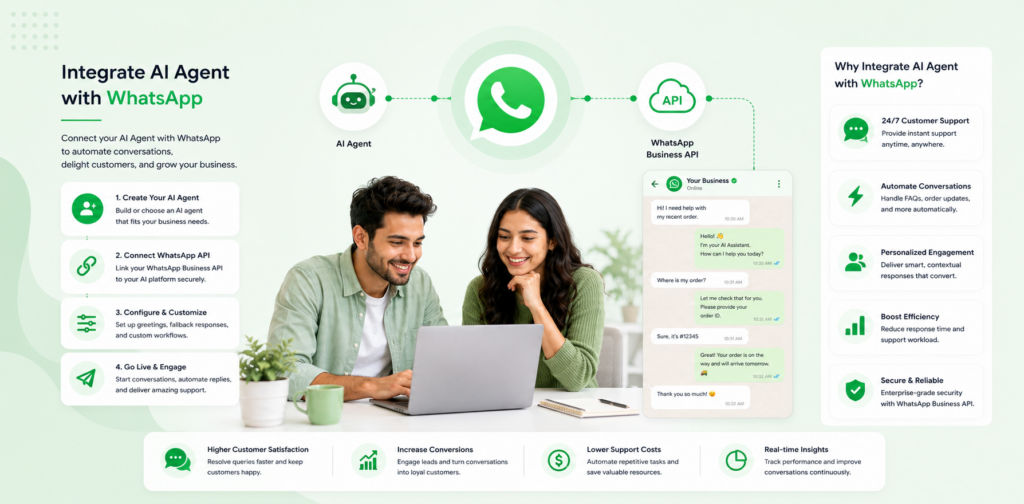
WhatsApp has over 2 billion active users globally. In the UK, it is the dominant personal messaging platform — and increasingly, the channel customers prefer for business communication. A business that can respond to WhatsApp enquiries instantly, at any hour, through an AI agent has a meaningful advantage over one that manages WhatsApp manually during business hours only.
This guide walks through the complete integration process: connecting your AI agent to WhatsApp Business, building the knowledge base for WhatsApp-specific query patterns, testing before going live, and the ongoing optimisation that keeps automation rates climbing. It is updated for 2026 with current API requirements, automation benchmarks, and a comparison of integration approaches.
Why WhatsApp AI Integration Is the Highest-Priority Channel Move in 2026
The WhatsApp integration page is the highest-performing non-branded organic page on this site — position 11.8 with 579 monthly impressions. That performance reflects genuine demand: businesses are actively searching for exactly this capability.
The reason is straightforward. WhatsApp is where customers already are. Asking them to visit your website to use a chat widget adds friction. Meeting them in WhatsApp — where they already have an active session — removes it.
For businesses that serve customers in the UK, Europe, Southeast Asia, the Middle East, or Latin America, WhatsApp is typically the primary or secondary inbound channel. An AI agent deployed on WhatsApp reaches customers in the moment they are most engaged, without requiring any new behaviour from them.
What You Need Before You Start
WhatsApp Business API access. The WhatsApp Business App (the free mobile app) does not support AI agent integration — it is designed for manual use by a single operator. You need WhatsApp Business API access, which is available through Meta-approved Business Solution Providers (BSPs) or directly through Meta for eligible businesses.
A verified Facebook Business Manager account. This is the authentication layer for WhatsApp Business API access. If you have not set one up, do this first — approval typically takes 24–48 hours.
A dedicated phone number for WhatsApp Business. This number cannot be the same as your personal WhatsApp number. Use a dedicated business line or a number you control that is not currently registered with WhatsApp personal.
A chatloop.io account. The chatloop.io integrations page handles the WhatsApp API connection through the dashboard — no developer involvement required.
Step 1: Set Up WhatsApp Business API Access
Navigate to your chatloop.io dashboard and locate the WhatsApp integration section under Channels. Chatloop.io provides a guided flow for connecting your WhatsApp Business API number without requiring you to interact with Meta's developer console directly.
You will need:
- Your Facebook Business Manager ID
- The phone number you are connecting
- Business verification documents (if not already verified on Facebook)
The connection process typically takes 10–30 minutes from start to finish for businesses that already have a verified Business Manager account. For businesses setting up Business Manager for the first time, allow 24–48 hours for verification.
Once connected, your WhatsApp Business number appears as an active channel in your chatloop.io dashboard.
Step 2: Configure Your WhatsApp-Specific Knowledge Base
WhatsApp query patterns differ from website chat in three important ways that should shape your knowledge base configuration.
More conversational phrasing. Website chat tends toward formal typed queries. WhatsApp messages are written the way people actually speak — abbreviated, casual, and often multi-part ("hi, quick q — do u do next day delivery and if so what's the cutoff?"). Your knowledge base entries should be tested against casual phrasing, not just formal typed questions.
Higher after-hours proportion. A larger share of WhatsApp messages arrive outside business hours than website chat — because customers treat WhatsApp as a persistent messaging channel they check at any time. Configure your AI to handle the full range of after-hours queries, not just FAQ responses.
Voice message processing. A growing proportion of WhatsApp communication is voice messages. Ensure your chatloop.io configuration handles voice inputs if your customer base uses this format — review chatloop.io features for current voice message capability.
Build your WhatsApp knowledge base from your website chat knowledge base as the foundation, then add entries specifically for the WhatsApp-specific query types identified from your existing message history.
Step 3: Set Up Your Greeting and Response Templates
WhatsApp Business API requires pre-approved message templates for outbound messages (messages you initiate, not replies). For AI agent use, the critical templates are:
Welcome message — sent when a customer messages you for the first time. Should clearly identify that the customer is interacting with an AI assistant and offer the help categories available.
After-hours acknowledgement — when a message arrives outside your AI's configured scope and needs human follow-up. Sets a realistic response timeline.
Escalation notification — when the AI transfers to a human agent. Introduces the human and provides context continuity.
Submit these templates through your chatloop.io dashboard for Meta approval. Standard templates are typically approved within 24 hours.
Step 4: Configure Escalation for WhatsApp
WhatsApp conversations have different escalation dynamics than website chat. Customers expect a more personal, responsive experience on WhatsApp — the escalation from AI to human should feel like a seamless handoff within the same conversation thread, not a redirect to a different channel.
Configure your escalation so that when a WhatsApp conversation transfers to a human agent, the full conversation history is visible in the agent's interface and the customer receives a message introducing the human agent by name. This context continuity is the single most important quality detail in WhatsApp AI escalation.
For the full escalation framework, see AI agent vs human support.
Step 5: Test Before Going Live
Run a structured test protocol before making your WhatsApp number publicly known as an AI-supported channel.
Internal testing (Day 1–2): Have your team members send test messages covering your top 20 customer query types — using realistic casual WhatsApp phrasing. Review every response for accuracy, tone, and appropriate escalation.
Soft launch (Day 3–5): Add the WhatsApp number to your email signature and order confirmations, but not yet to your website or social profiles. This generates a low volume of real customer messages for quality monitoring without high exposure.
Full launch (Day 6+): Once you are satisfied with response quality from the soft launch period, add the WhatsApp number to your website, Google Business Profile, and social media profiles.
WhatsApp AI vs Website Chat: Comparison Table
| Feature | WhatsApp AI | Website Chat AI |
|---|---|---|
| Channel persistence | Conversation history retained | Session-based |
| After-hours query capture | High (customers message async) | Medium |
| Customer friction | Low (already in app) | Medium (requires website visit) |
| Voice message support | Available | Limited |
| Proactive outreach | Available via templates | Limited |
| Typical first response | Under 5 seconds | Under 5 seconds |
| Setup complexity with chatloop.io | Moderate (API approval needed) | Low (widget snippet) |
Automation Benchmarks for WhatsApp Deployments
Based on chatloop.io deployments using WhatsApp as a primary channel:
- Automation rate at 30 days: 51% median
- Automation rate at 90 days: 64% median
- After-hours query resolution: 78% (vs 45% on website chat for the same businesses)
- Customer preference for WhatsApp over email for support: 67% of WhatsApp-deployed businesses report customers voluntarily switching to WhatsApp from email for support queries
The after-hours automation advantage is the standout metric. WhatsApp's persistent, asynchronous nature means customers send messages at any time — and an AI that handles them in the same thread without redirecting produces markedly better satisfaction outcomes than an email autoresponder.
Common Integration Issues and Fixes
Issue: Messages not received in chatloop.io dashboard Fix: Verify the webhook URL is correctly configured in your Facebook Business Manager API settings. This is the most common setup issue.
Issue: AI responding slowly (over 10 seconds) Fix: Check your knowledge base size — extremely large knowledge bases (300+ entries) without topic organisation can slow retrieval. Organise entries by category and ensure the most common queries are clearly structured.
Issue: Template messages rejected by Meta Fix: Meta rejects templates that include variable placeholders without example values, contain promotional language without a prior opt-in, or use restricted categories. Review Meta's template rejection reasons and resubmit with corrections.
Issue: Customers receiving no response outside business hours Fix: Ensure your chatloop.io AI is configured for 24/7 operation, not business-hours-only. The default configuration should be always-on — check your availability settings in the dashboard.
FAQ
Can I use my personal WhatsApp number for business AI integration? No. WhatsApp Business API requires a dedicated business number that is not registered on a personal WhatsApp account. Attempting to use a personal number will result in account suspension.
How long does WhatsApp Business API approval take? For businesses with an existing verified Facebook Business Manager account, the number registration process takes 10–30 minutes. If you need to verify your Business Manager first, allow 24–48 hours.
Does the AI work for group WhatsApp messages? WhatsApp Business API supports one-to-one business messaging. Group message automation requires separate configuration and is subject to additional WhatsApp policies.
What happens to the conversation if the AI cannot answer? The AI escalates to a human agent within the same WhatsApp conversation thread, providing the agent with full conversation context so the customer does not need to repeat themselves.
How does WhatsApp integration affect my chatloop.io subscription? WhatsApp is included as a channel in chatloop.io's standard plans. Check current channel inclusions at chatloop.io plans.
Connect your AI agent to WhatsApp in under an hour. Start your free chatloop.io trial and reach your customers where they already are.

9 Responses on this post
Comments are closed.